|
AutoCAD Tools
 Batch
Plot DWG (2024)
Download
Buy Now Batch
Plot DWG (2024)
Download
Buy Now
Batch
Plot DWG (2023)
Download
Buy Now
Batch
Plot DWG (2022)
Download
Buy Now
Batch
Plot DWG (2021)
Download
Buy Now
Batch
Plot DWG (2020)
Download
Buy Now
Batch
Plot DWG (2019)
Download
Buy Now
Batch
Plot DWG (2018)
Download
Buy Now
Batch
Plot DWG (2017)
Download
Buy Now
Batch
Plot DWG (2016)
Download
Buy Now
Batch
Plot DWG (2015)
Download
Buy Now
Batch
Plot DWG (2014)
Download
Buy Now
Batch
Plot DWG (2013)
Download
Buy Now
Batch
Plot DWG (2012)
Download
Buy Now
Batch
Plot DWG (2011)
Download
Buy Now
Batch
Plot DWG (2010)
Download
FREE
Batch
Plot DWG (2009)
Download
FREE
About
Batch Plot DWG is a comprehensive set of utilities designed to
execute repetitive tasks quickly and easily. Plotting and converting
batches of AutoCAD drawings are some of the most popular tasks included
in the program.
The program is equipped with a self-explanatory and
user friendly interface that preserves user's options for the next time
it runs.
It features several modes to select files to work with,
notably: drag and drop, loading Excel lists, or searching for files in
selected folders.
It is designed to save time and money; an
indispensable program to every CAD manager and AutoCAD user.
Try it
now by downloading the version that corresponds to your AutoCAD version.
Features
and Benefits
- High performance: average plot creation speed
25 drawings/min*
- There is no need to spend time creating
AutoCAD page setups. The settings you select
on the program menu are applied to each
drawing in the batch.
- Supports ctb and stb plot styles,
that can
be applied to all drawings in the batch.
- Batch converts DWG files to other file formats (BMP, DXF, EPS, JPG, PNG, SAT, WMF and PDF).
- Six efficient modes to select files to work
with:
a.
drag and drop drawing files from Windows Explorer,
b. load list from Excel,
c. load list from Excel automatically,
d. search folders for drawings,
e. all open drawings,
f. active drawing only
- Flexible Model / Paper Space Options:
Active Space,
Model Space Only,
Paper Space Only,
All Paper Layouts,
Model + All Paper Layouts
- Drawing orientation: Auto Select,
Portrait or Landscape
- The list in Drag and Drop and Search Folders can be sorted by clicking on the column name so that drawings are plotted in alphabetical order.
- In the Drag and Drop and Search Folders tabs the user can export the list of files to Excel for future use.
- All settings are saved between sessions
Usage
-To use the program, first launch AutoCAD, then launch Batch DWG by browsing the
menu: All Programs, Office Optimum, Batch DWG.
Then, please
follow these simple instructions describing
each item on the program interface:
1-First, select files to work with in
Files Selection tab.
There are 6 modes to select files. In the Files Selection menu, select the tab corresponding to your needs. Ex:
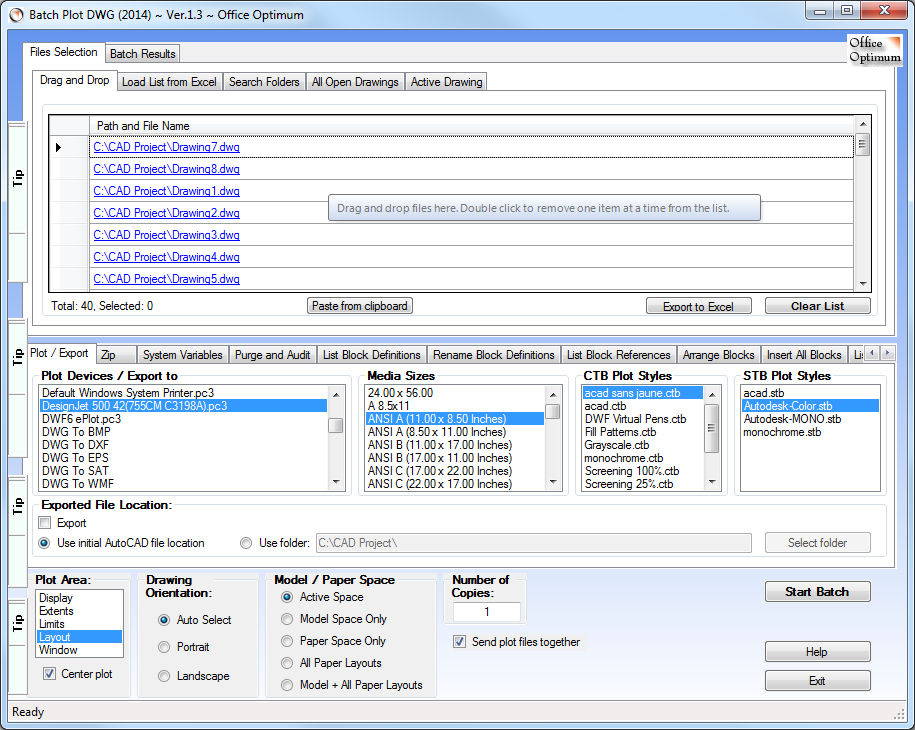
a. Drag and Drop files from Windows
Explorer to the program interface.
If you change your mind, you can double
click to remove some of the files from the
list.
Note that if you drag and drop
files of incompatible format they will be
skipped when the batch process starts.
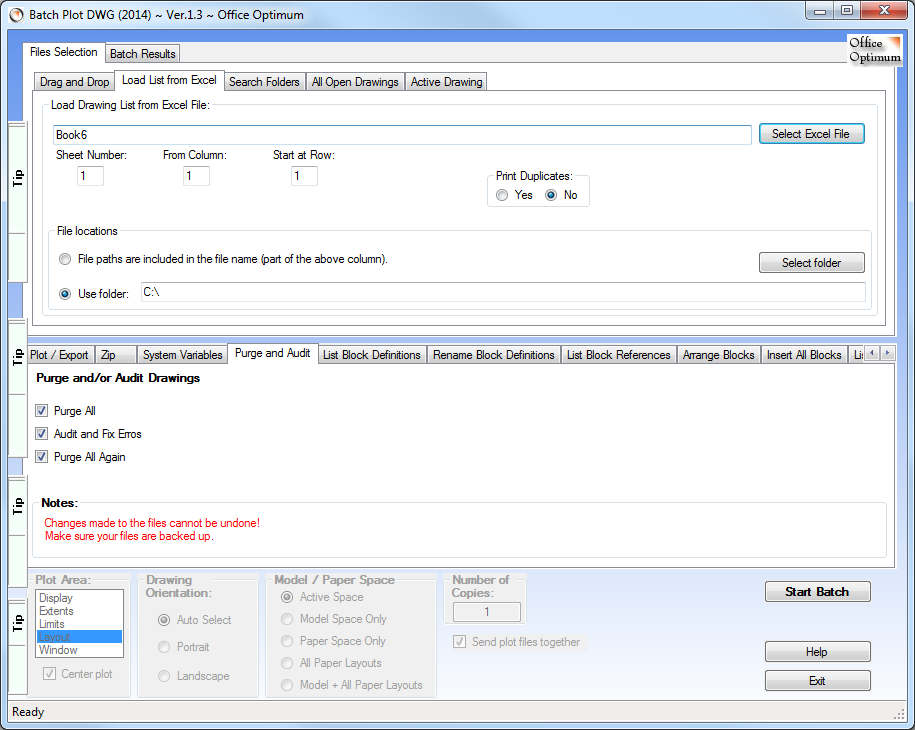
b. Load List from Excel from an Excel file. To
use this mode you first need to have the
drawing list open in Excel, then to click
Select Excel File button; a window will
pop-up showing all open Excel files. Select
the appropriate Excel file. Next, enter the sheet
number where the list is located in the
Excel file (ex.: enter 1 if the list is in
the first sheet). Specify the
column to read from in the From Column
field by entering the column letter or
column number.
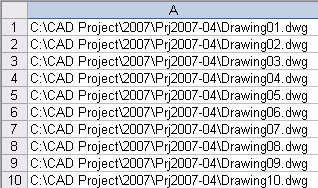
If the paths of the files are included in the
list, select File locations are specified
in the selected Excel file option.
This is an example of such list:
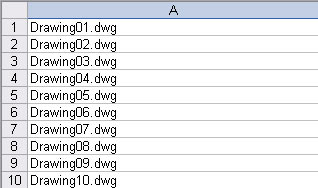
If the paths of the files are not included in the list,
select Use folder option and click
Select folder button to browse to the
folder where drawings are located.
This is an example of such list:
At the end the batch process, the cells
in the Excel file will be marked in green
and red; files successfully plotted will be
marked in green, files not found in red and
duplicates will be left unchanged.
Note
that duplicate files in the Excel list will
not be plotted unless Print Duplicates
option is set to Yes.
c. Load List from Excel Auto
Works in a similar manner as the above mode but with the difference that the Excel files can be placed in a particular folder.
Once you press the Start Batch button, the program will start watching the specified folder.
As soon as a new Excel file is placed in the folder, the program will read the list of drawings, open each of them and process them according the action selected in one of the Action tabs bellow.
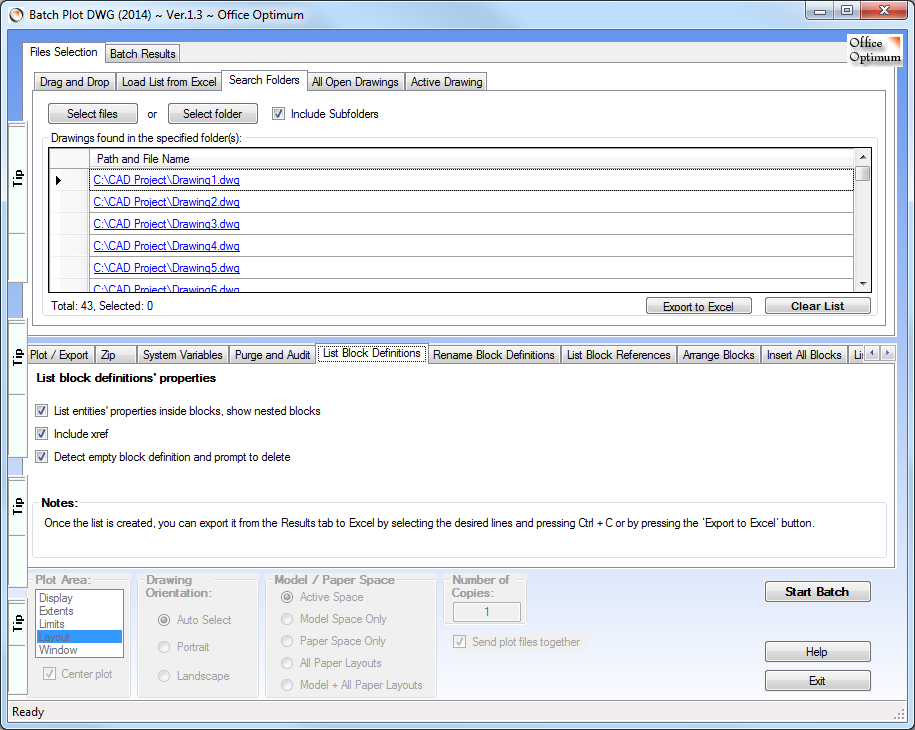
d. Search Folder mode. To use this
mode, first decide if you need to check the
Include SubFolders or not. Then,
click Select folder button and browse
to the folder where drawings are located.
All drawings found will be listed in the
lower window. You can click Select folder
button again and add files from other
folders to the
list. If you wish, you can double
click to remove some of the files from the
list.
e. All Open Drawings allows you to process all currently
open dwg files. You have the option to close
all files when finished (without saving).
f. Active Drawings mode plots only the active dwg file.
- The list in Drag and Drop and Search Folders can be sorted by clicking on the column name so that drawings are plotted in alphabetical order.
Click again to sort in reverse order.
- In the Drag and Drop and Search Folders tabs the user can export the list of files to Excel for future use.
2-Select an action, ex: Plot / Export, Zip,
etc (For a complete list, please see the How Tos section on this page).
If you wish to plot, you then need to select a plot device from the list of available printers and plotters.
At the bottom of the list there are options to export DWG to other file formats.
Select the desired media size; all selected documents will be printed on the same paper size. Optionally, select a plot style.
If you selected a driver to export the DWG files to other file formats, you need to specify the
Exported File Location.
You can either use initial AutoCAD file location or select another folder.
Note that Export to file check box is automatically selected for you.
3-Select Plot Area, Drawing Orientation,
Model / Paper Space and
Number of Copies Options if necessary. Using Extents for the plot area is most useful.
The Auto Select option will automatically
select portrait or landscape orientation
according to each drawing format.
4-Finally, click the Start Batch button to start the batch.
The options selected will be applied to all
drawings.
You can click the Exit/Cancel button to stop a running batch process.
Screenshots
Drag and Drop mode
Load List from Excel mode
Search Folders mode
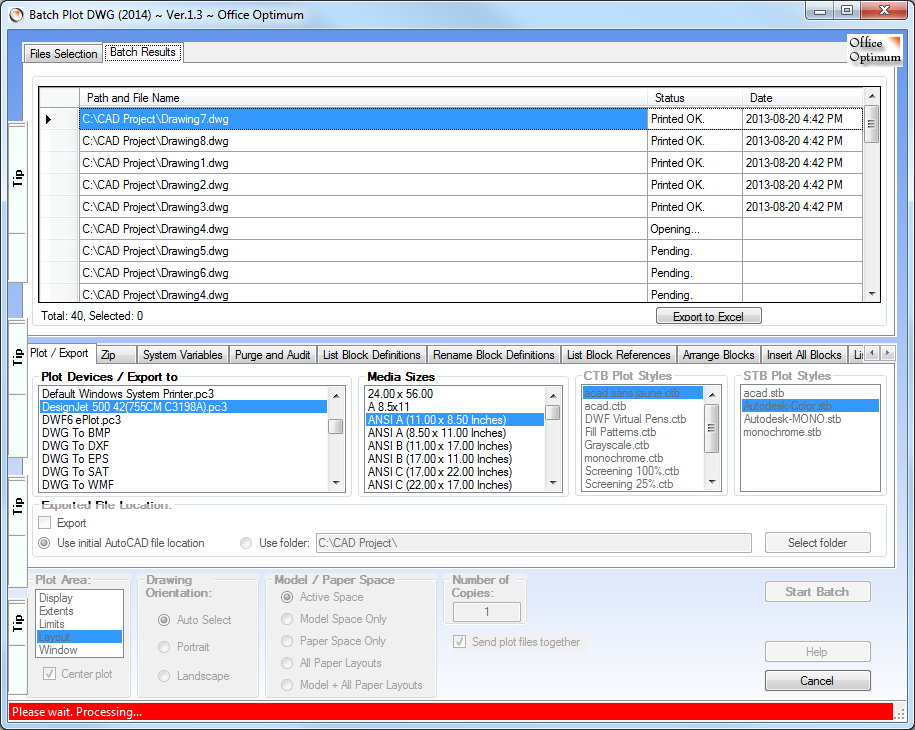
Batch results example
How Tos
How to batch export / convert DWG files to PDF or other file formats
In the Plot / Export mode, select DWG to PDF.pc3, Pdf Creator, Acrobat PDF printer or other PDF converters. Make sure
Export is checked and Send plot files together is unchecked.
Similarly, you can convert DWG file format to BMP, DXF, EPS, JPG, SAT or WMF by selecting the respective item in the
Plot Devices / Export to list.
How to Replace Text and attributes in batches of AutoCAD documents.
There are two ways available for providing find and replace text information.
- You can enter one pair of find and replace text in the two fields
provided.
(Leave the Find Text field empty to search for all text.)
-The second method is to provide a list of multiple pairs of find and replace text in an Excel file.
The Excel list needs two columns, one with find text and another
with replace text.
Change the sheet options or text options if necessary.
Select the Preview button to see how the text will be modified or to simply search for text and press the Start Batch button to execute the preview.
In the Batch Results tab you can see all the text items found and what changes will be made to them.
Finally, if future changes are as expected, select the Replace button then Start Batch button to execute the replacement of text.
Changes made to the files cannot be undone!
Make sure your files are backed up.
-The user can selectively search and replace in the following areas:
Text and Mtext in Model Space
Text and Mtext in Paper Space
Text and Mtext in Block Definitions
Attributes in Model Space
Attributes in Paper Space
There is an important difference between the two operating modes: Preview and Replace.
Preview mode searches for text and displays the found text and the new text as will be modified but does not save any modification to the drawings.
This mode allows to see how and what text will be modified without actually modifying anything.
The Replace mode also shows the old text and the new text but also saves the modifications to the drawings.
-After a preview, each matching text item is listed and selected for replacement, but user is given the option to unselect some of the text items before the batch replacement starts.
-Search and replace text can be applied to AutoCAD Drawing (dwg) and AutoCAD Drawing Template (dwt) files.
The results tab gives a detail report of the changes to each document and text item.
Each text item is listed on a separate line which shows the file name and its path, the old text and the new text.
Occasionally you will notice formatting characters within the text (Ex. \P). They can be ignored as they are only displayed in the Results tab; AutoCAD uses them to format the text.
How to Export System Variables from drawings
You can list all AutoCAD system variables using the System Variables
tab in Batch Plot DWG after selecting one or more drawings. Once the
list is created, you can either review and compare the data in the
Batch
Results tab or you can export it to Excel by selecting the desired lines
and pressing Ctrl + C or by pressing the Export to Excel button. Using this method you can quickly compare variables between templates and problematic drawings in order to spot the differences.
How to Purge and Audit multiple drawings
Select your drawings using the preferred method in Batch Plot DWG, then
click Purge and Audit tab. Select the purge and/or audit checkboxes as
necessary. The program will perform the actions in this order: purge
all, audit and fix errors, purge all a second time.
Attention! Changes made to files cannot be
undone. Make sure your files are backed up
and that unused objects in your drawings are
no longer needed.
How to List Block Definitions (including all nested ones and xrefs) from multiple drawings
This tool is useful for searching your block libraries, archiving blocks and analyzing their general and dynamic properties.
It creates a detailed report about all blocks in the selected drawings.
The report includes block definitions’ names and block references’ names, all block properties and, optionally, a list of all entities inside blocks and their properties. Since model and paper spaces are also blocks the report includes all entities inside them too.
Dynamic property names and their values are valuable inclusions in the report.
Additionally, you can include blocks and their entities from xref files.
The information can be changed in Excel and imported back to the AutoCAD drawing. This way large numbers of block definitions names and the layers of the block references can be changed in a few seconds. The Excel file can then be saved for future use or kept for reference.
The user can determine the exact block content in the AutoCAD file.
By checking the Detect empty block definitions and prompt to delete option you will be prompted to delete each empty block definition found.
Also, if the application encounters a block definition with no name you will be prompted to name it. Blocks with no name are illegal entities in AutoCAD.
In the List Block Definitions tab, select the options that you need and press
Start Batch button.
List of properties included in this list:
-Block definition name
-New Block definition name
-Number of entities in block-
-Is XRef
-Is Layout
-Units
-Explodable
-Nested block name
-Object name
-Color
-Layer
-Line type
-Linetype scale
-Line weight
-Plot style name
-Hidden
-Insert units
-Insert units factor
How to Rename Block Definitions
Start by using the List Block Definitions tab to export the block list to Excel.
In the Excel file, change the values in the column New Block definition name with new block names.
Then in order to change the block definitions' names in the dwg file, go to Rename Block Definitions tab and click on Select Excel File button to select the Excel file where the black list was modified.
Enter the sheet number, Old Name Column letter (or number) and
New Name Column letter (or number).
Next, click on Start Batch button.
How to List Block References from multiple drawings
This tool is useful for searching your block references, archiving blocks, analyzing their dynamic properties names and values and also for listing the attributes’ tags and values.
In the List Block References tab, select the options that you need and click on Start Batch button.
List of properties included in this report:
-Block reference name
-Effective name
-Model or Paper Space
-Layer
-Line type
-Line type scale
-Line weight
-Object name
-Plot style name
-Visible
-Insert units
-Ins units factor
-Rotation
-X Effective scale factor
-X Scale factor
-Y Effective scale factor
-Y Scale factor
-Z Effective scale facto
-Z Scale factor
-Dynamic property name
-Dynamic property value
-Attribute tag
-Attribute text
-Constant attribute tag
-Constant attribute text
-X min WCS coordinate
-Y min WCS coordinate
-Z min WCS coordinate
-X max WCS coordinate
-Y max WCS coordinate
-Z max WCS coordinate
-X center block WCS coordinate
-Y center block WCS coordinate
-Z center block WCS coordinate
How to Arrange Block References by Moving them in Alphabetical Order
in a Vertical Column
This tool is useful for archiving and analyzing
block references.
In the Arrange Block References tab and click on Start Batch button.
How to Insert All Blocks in a Vertical Column
From the Insert All Blocks tab you can insert all block definitions and their names from the active drawing in the active space.
All blocks are inserted in one column. The dynamic block variants are inserted horizontally, in rows.
This AutoCAD utility helps you keep track of your block libraries and gives a clear view of all dynamic states/variants by listing all the available blocks in the file.
It can also insert text entities as labels with the blocks’ name for easy identification.
Blocks’ names are inserted as text entities in another column beside the blocks, in line with the blocks.
How to List All External Entity Data (XData) from multiple drawings
Select List XData tab, then enter the application name if you need to filter the XData by the application the recorded the information.
Next, click on Start Batch button.
How to Import a Page Setup from Active Drawing to Multiple Drawings
This tool uses the active drawing as source for the page setups.
Select one or more Page Setups from the list.
Press Start Batch to import the selected Page Setups from the active drawing to the drawings selected in the Files Selection area.
How to generate and insert Barcodes in DWG files (or elsewhere in any other document type).
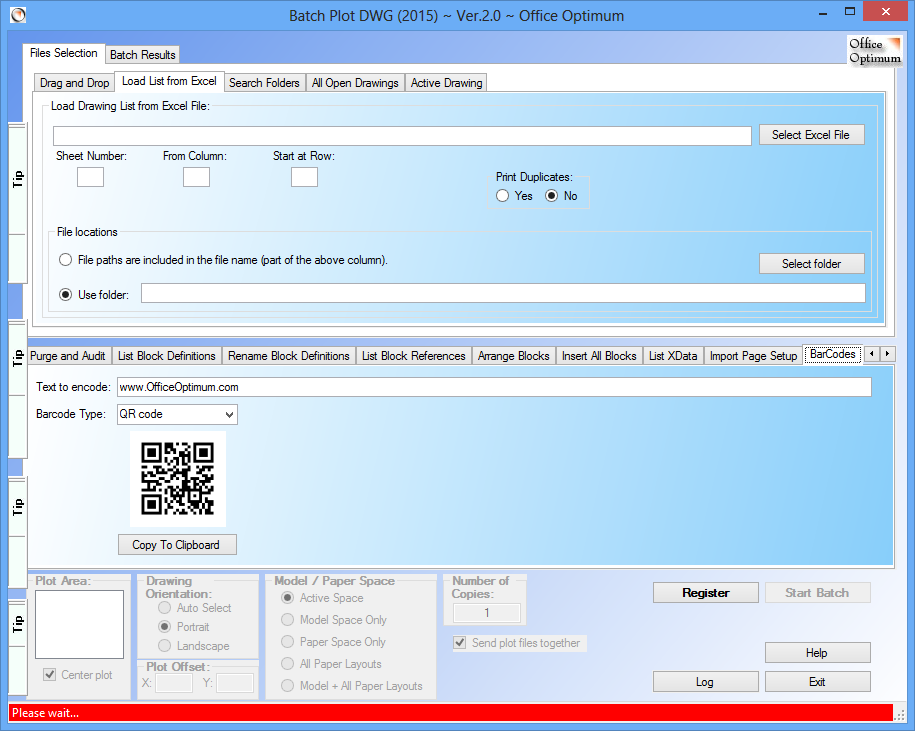
Select the BarCodes tab on the program interface, then enter the text to encode and select a barcode type.
You have the option to select among a few linear barcodes (one dimensional) or matrix barcodes (2D barcodes) like PDF417 or QR code.
Next, click on Copy to Clipboard button.
Paste the barcode image in a AutoCAD drawing or in an Excel or Word document.
How to Change path of Xref
This tool changes the path of all the external references in a given drawing to point to a new location.
Select a folder to provide the new Xref path.
Then press Start Batch button.
* Speed varies depending on factors like file size, network and
computer speed.
- Pad file location:
https://www.officeoptimum.com/AutoCAD/BatchPlotDWG/BatchPlotDWG2023Setup.xml
https://www.officeoptimum.com/AutoCAD/BatchPlotDWG/BatchPlotDWG2022Setup.xml
https://www.officeoptimum.com/AutoCAD/BatchPlotDWG/BatchPlotDWG2021Setup.xml
https://www.officeoptimum.com/AutoCAD/BatchPlotDWG/BatchPlotDWG2020Setup.xml
https://www.officeoptimum.com/AutoCAD/BatchPlotDWG/BatchPlotDWG2019Setup.xml
https://www.officeoptimum.com/AutoCAD/BatchPlotDWG/BatchPlotDWG2018Setup.xml
https://www.officeoptimum.com/AutoCAD/BatchPlotDWG/BatchPlotDWG2017Setup.xml
https://www.officeoptimum.com/AutoCAD/BatchPlotDWG/BatchPlotDWG2016Setup.xml
https://www.officeoptimum.com/AutoCAD/BatchPlotDWG/BatchPlotDWG2015Setup.xml
System requirements
AutoCAD 2009
or later
Operating System Windows 7, Windows 8, Windows 10
(32 or 64 bit)
Microsoft Excel
This program is incompatible with AutoCAD LT!
|

 AutoCAD Tools